Dashboard Cliente
Video:
Once the campaign has started, you need to invite che client to get access to the project dashboard.
Remember to do it not only in the case of a Functional Test, but also for a Usability Test where the client needs access to the videos.
From the USER tab of the campaign setting, click on "add a customer user" to invite the user with his/her personal email: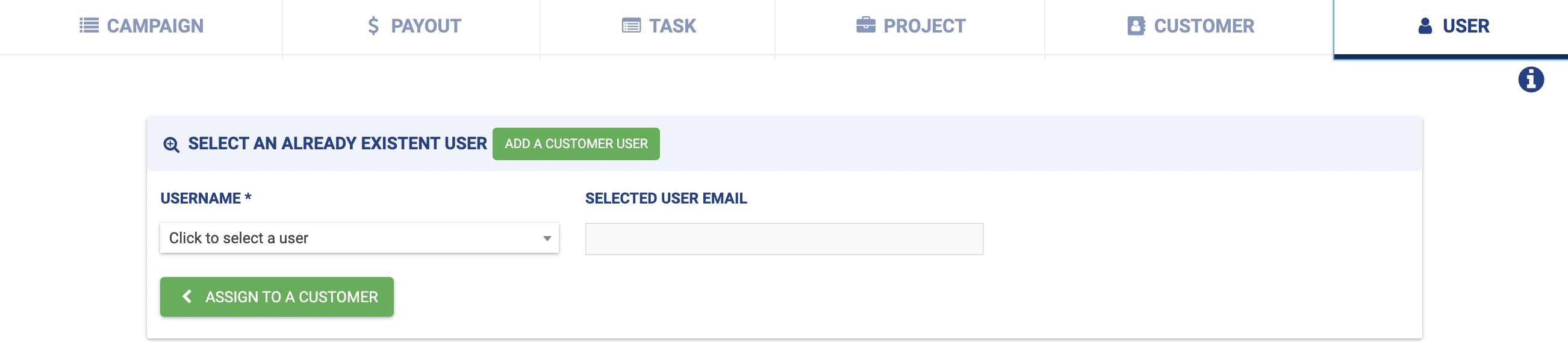
The user will then receive an email with an access link to the dashboard. After choosing his/her password, he/she will be able to create his/her own personal profile. Data can be edited anytime, if required, from the personal profile of the user.
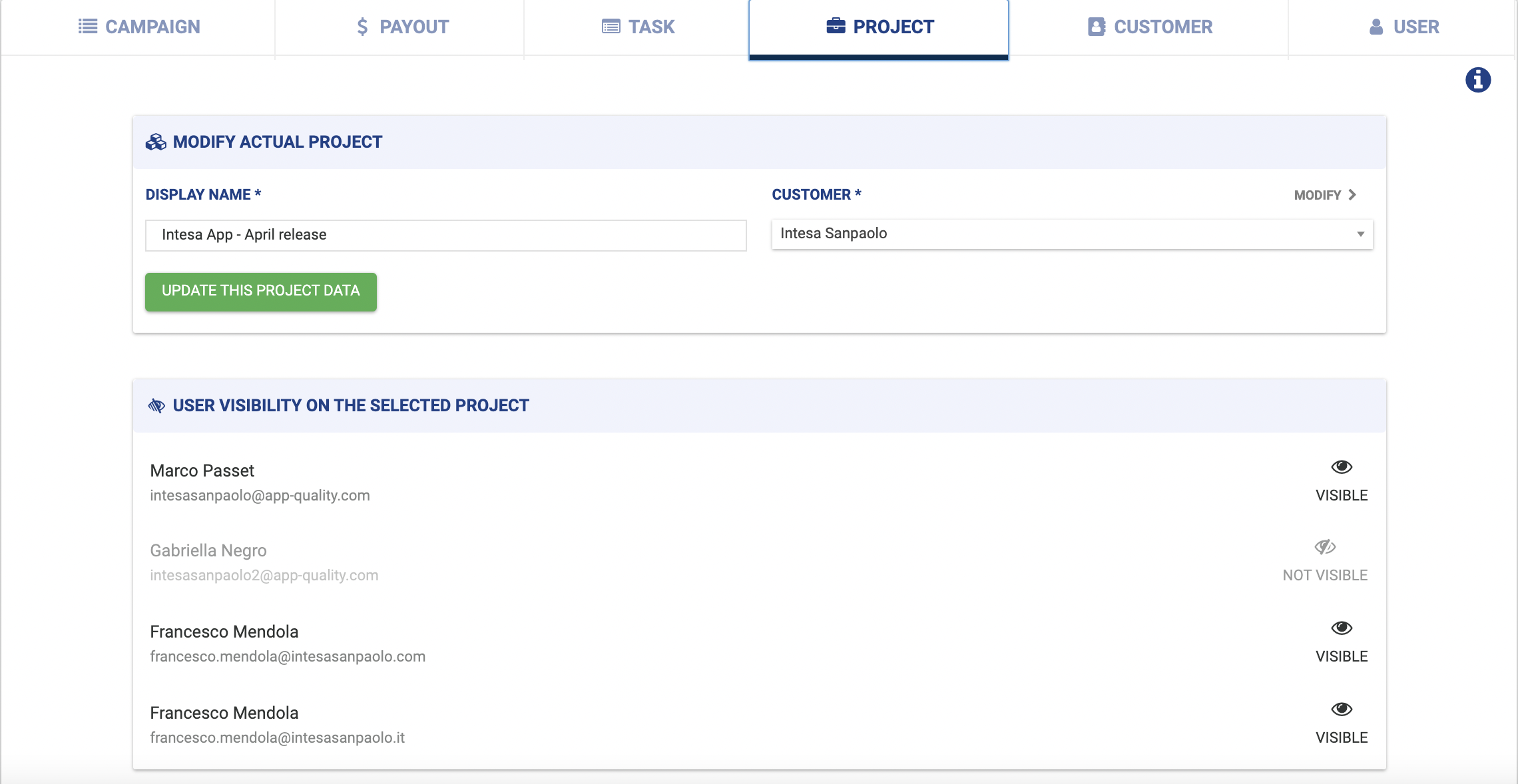
Please note that the user is associated to the client! This means that if you just invited a new user for a specific campaign, the user will have access to ALL the other projects of the same client.
You can edit this functionality anytime, from the Project tab of that specific campaign.
Also, after having invited the user, remember to check that the visibility function is active for that user and campaign.
Remember that credentials are personal, therefore you would need to send the invitation email to all the users that need access to the Dashboard.
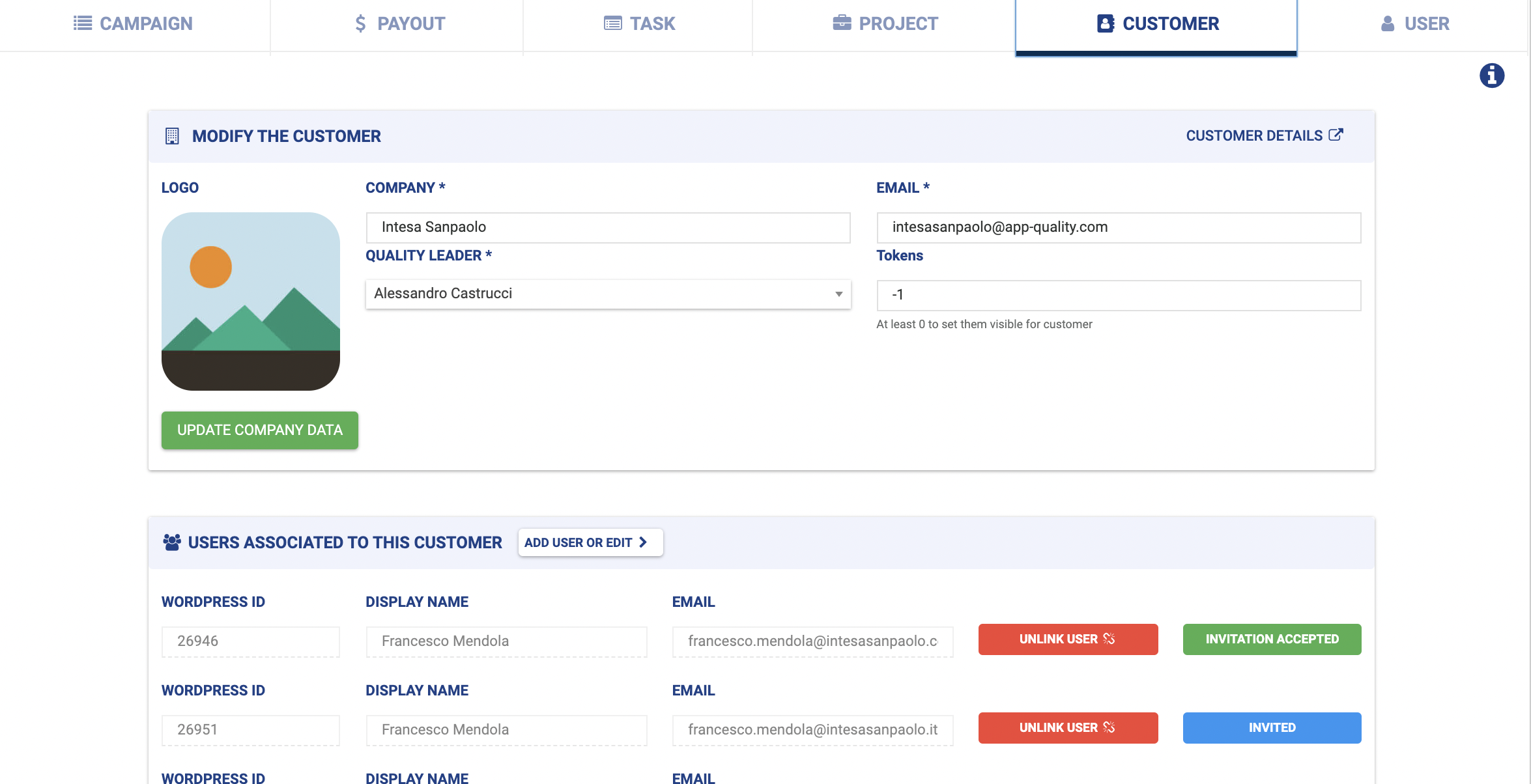
You will be able to check whether the user correctly accepted the invitation and logged in throughout the green "invitation accepted" button from the Customer tab.