MarketingFaqs
Edit the Services menu’s copy
-
STEP 2: appearance (in the menu on the left)
-
STEP 3: Widgets
-
STEP 4: Servizi- Mega Menu (IT) o Services-Mega Menu (EN)
Link your calendar to Hubspot
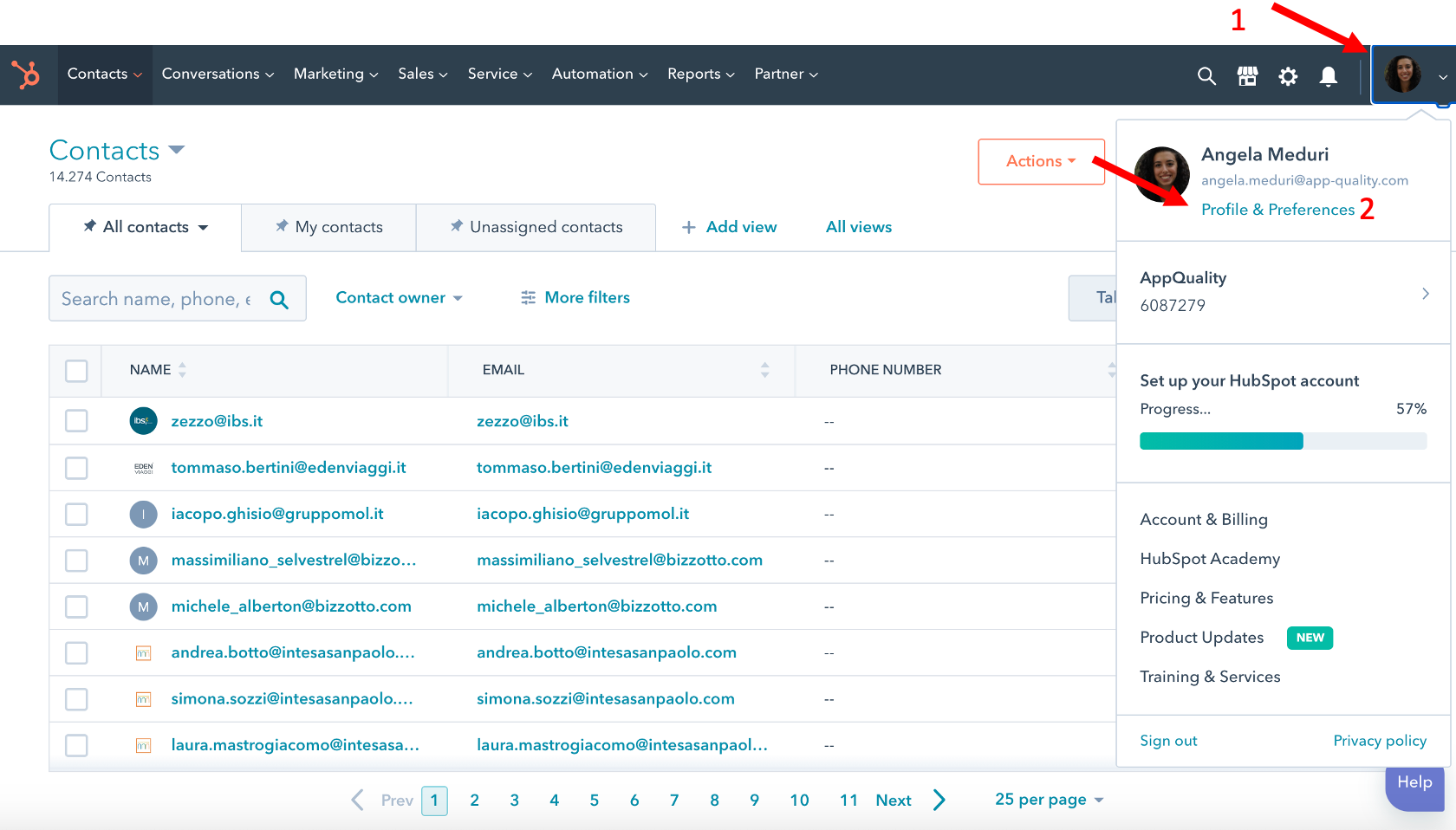
- Click on your profile picture
- Click on "profile & preferences"
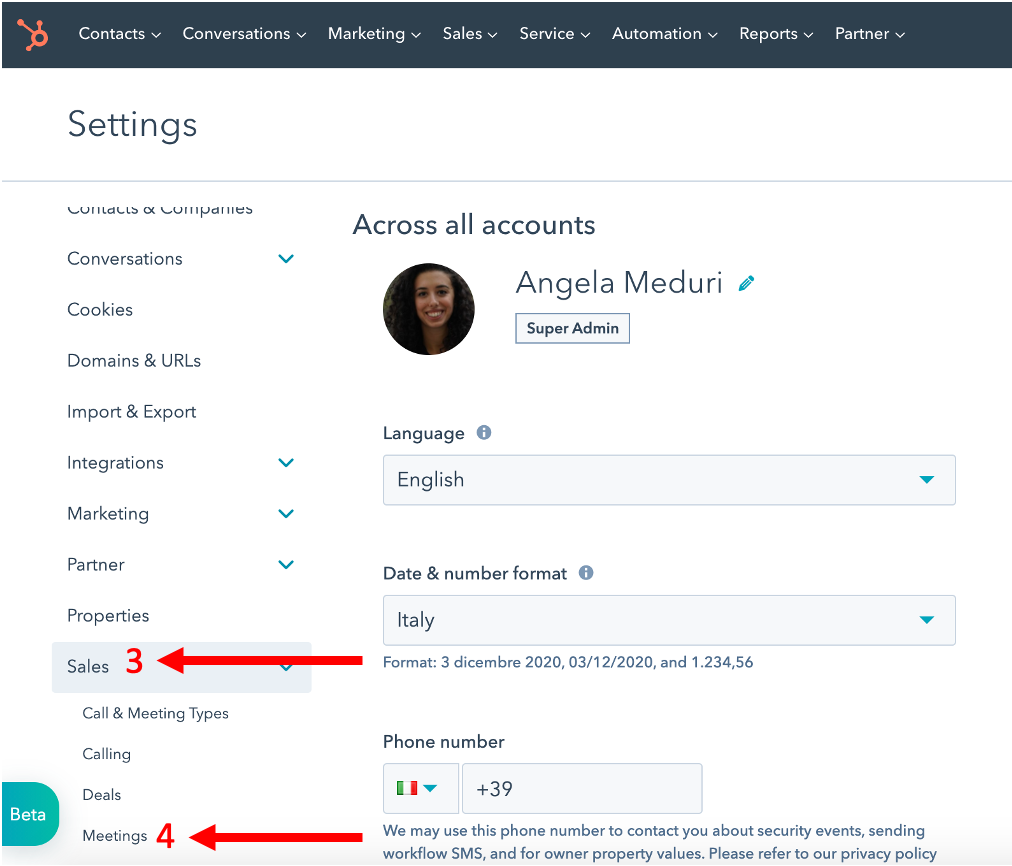
- Click on "Sales" in the left menu
- Click on "Meetings"
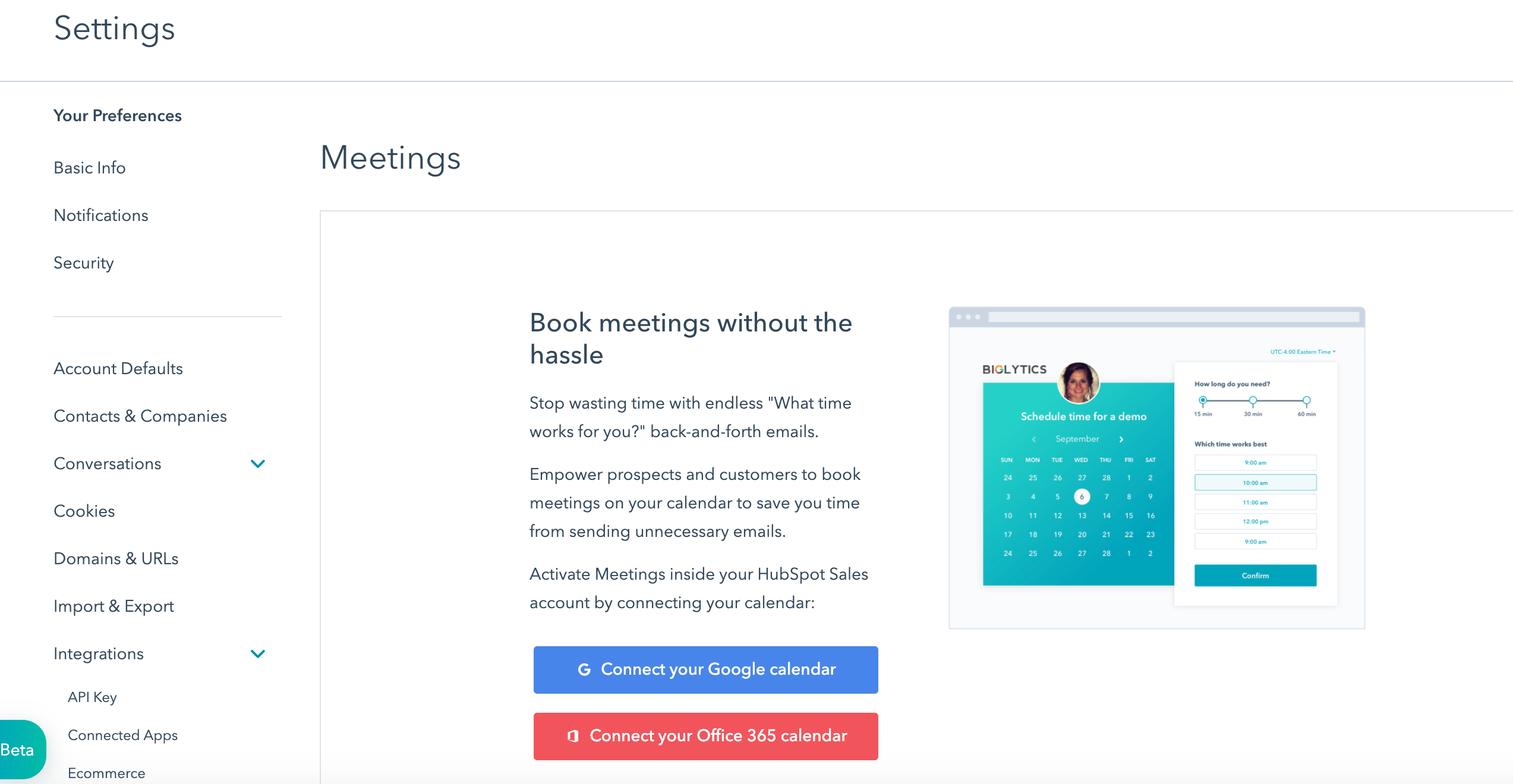
- Click "Connect your Google calendar" → if you don't have the option, see this page on how to download the calendar integration
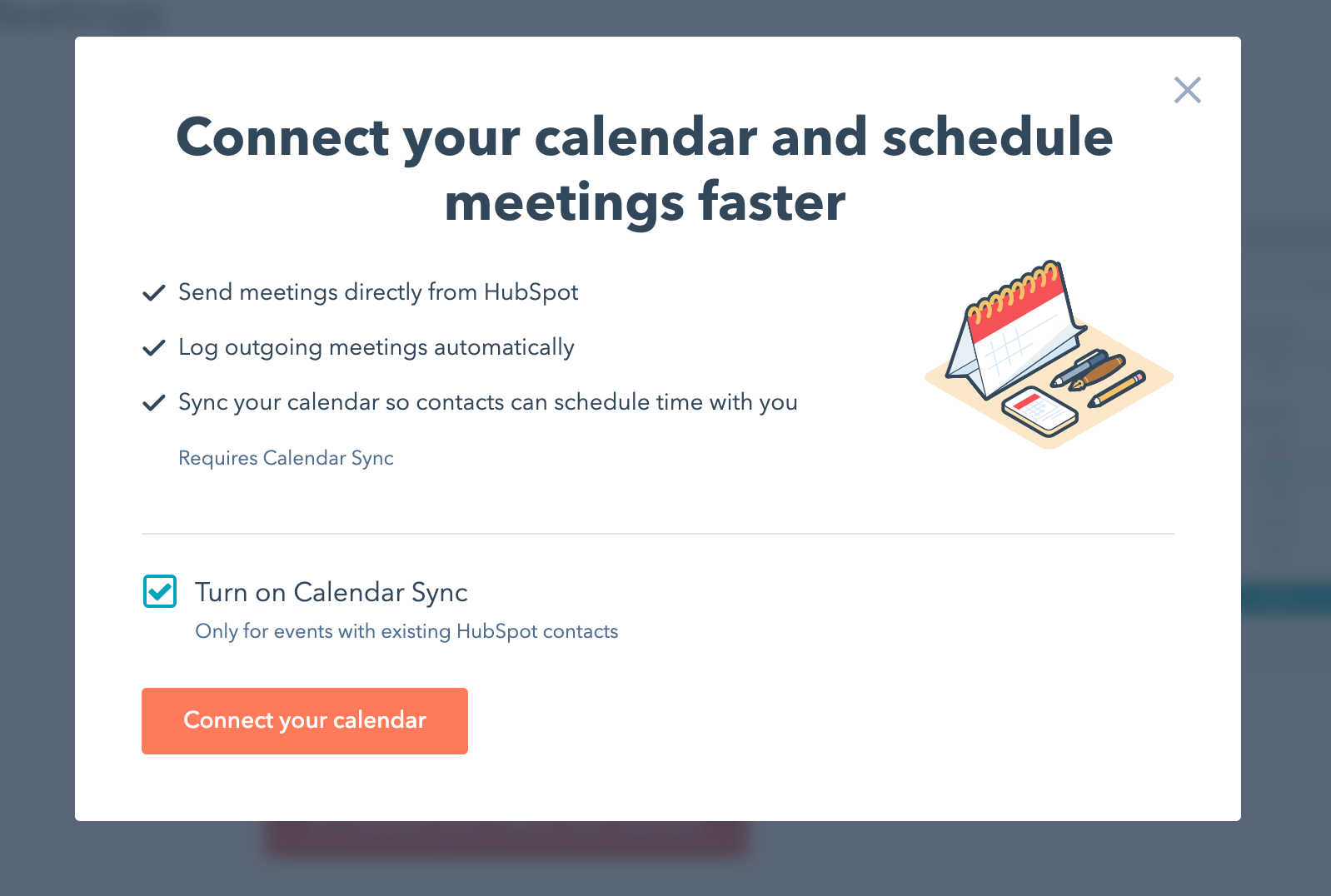
- Click on the orange button and continue with the consents
Create the hubspot link to your calendar
To create a calendly style link
- Once you have accepted the consents, you will land on the page below. Click on the button at the top right to get the link to your calendar.
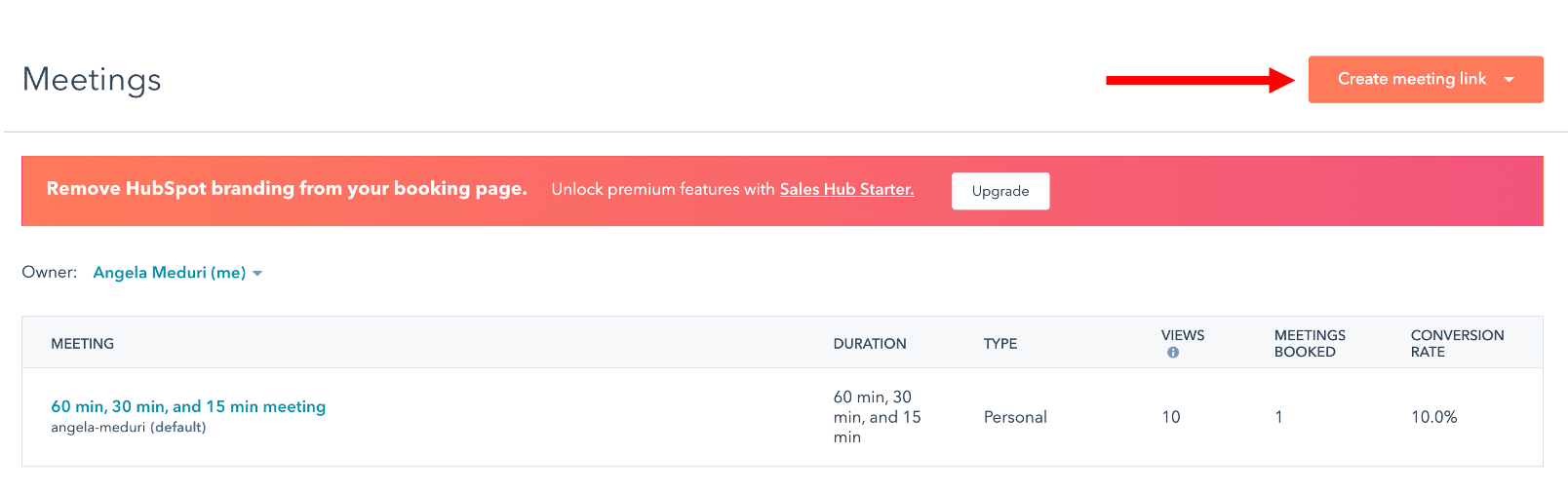
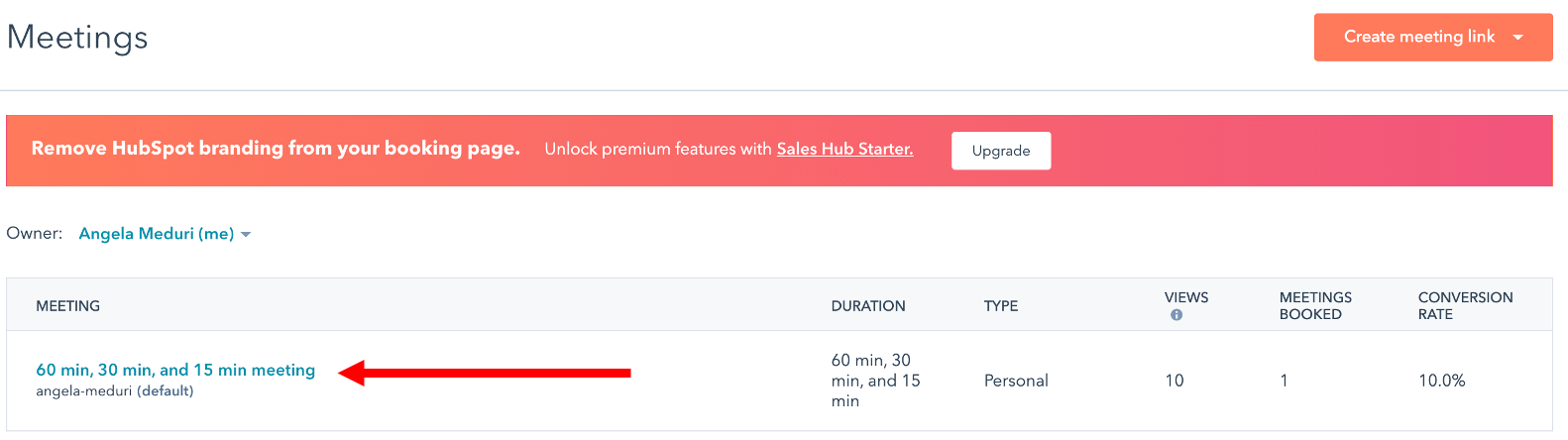
- Once created, it will show up in the list (as shown in the picture here). You can also edit the availability by clicking on the link as shown in the picture. It will be possible to edit the call duration options (i.e. what alternatives you can give to whoever is booking, for example 15, 30, 45, 60 min). It is also possible to decide which days of the week and within what hours a call can be booked through the link
How to download the integration to calendar
- Follow the first 2 steps of "Connecting your calendar to Hubspot
- Click on "Integrations"
- Click on "Connected apps"
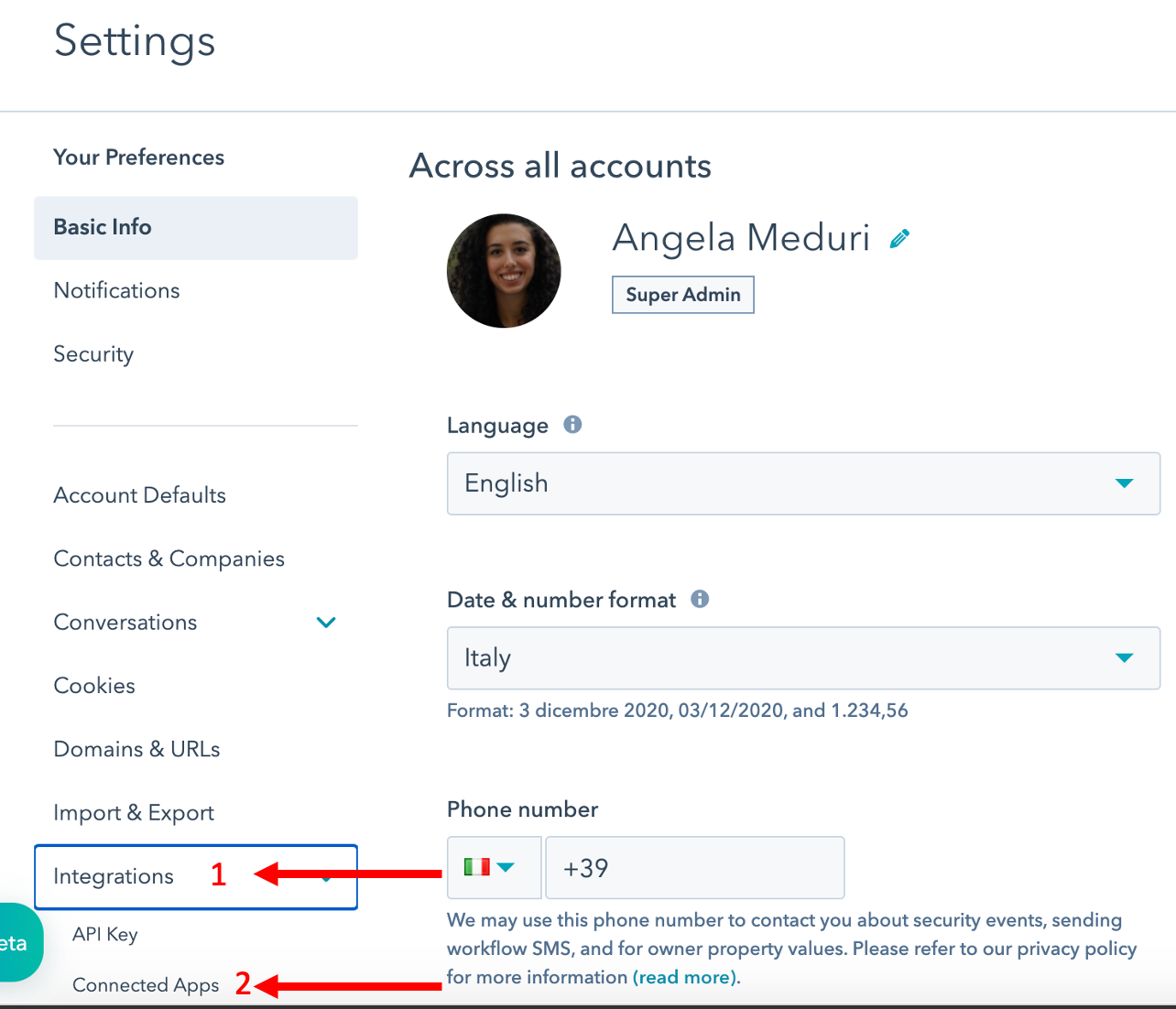
4 Visit the Marketplace (orange button)
. 
-
Search Google Calendar, click on the app and choose "Connect app"
-
Continue from step 3 of "Connect your calendar to Hubspot"